
Introduction
Do you want to know The Best Fortnite Graphics Mode for your computer? You came to the right place.
Fortnite can look amazing. But sometimes, amazing graphics make the game run slowly. Your character might lag. Your shots might miss. That is frustrating.
The good news is that you can choose a Fortnite graphics mode that fits your PC. The right mode gives you smooth gameplay. You can see enemies clearly. You can build faster. You can win more matches.
In this guide, we will explain everything in simple terms. No complicated words. No tech jargon. Just clear answers.
Let’s find the best Fortnite graphics mode for you.
Table of Contents
What Is a Graphics Mode in Fortnite?
A graphics mode in Fortnite is simply how the game draws pictures on your screen. Game experts call this “rendering.”
Think of it like this: your computer is an artist. The graphics mode tells the artist how to paint each frame of the game.
- Some modes tell the artist to paint every tiny detail. This looks beautiful but takes a lot of time.
- Other modes tell the artist to paint faster by skipping some details. The picture may not be as pretty, but it is much quicker.
Fortnite gives you three choices for your graphics mode. Picking the right one is the most important decision for your gameplay.
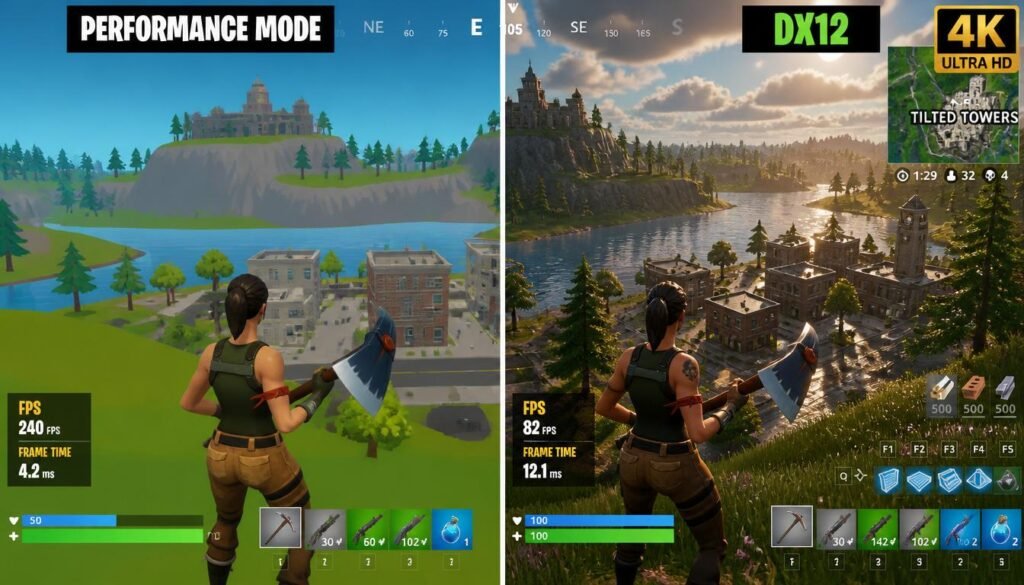
The Three Fortnite Graphics Modes Explained
Let’s look at each Fortnite graphics mode one by one.
Performance Mode
What is it? Performance Mode is designed for maximum speed.
How does it work? It turns off fancy visual effects. It simplifies shadows and lighting. The game looks simpler, almost like a mobile game.
Who should use it? Players who want the highest FPS (frames per second). Most competitive players and professionals use Performance Mode.
Pros:
- Much higher FPS (up to 3x more than DX11)
- Less input lag (your actions happen faster)
- Fewer game stutters
Cons:
Fun fact: Using Performance Mode can save over 14 GB of storage space by removing high-resolution textures.
DirectX 11 (DX11)
What is it? DX11 is the older, stable graphics mode.
How does it work? It uses one main processor core to handle graphics.
Who should use it? Players with older graphics cards like GTX 1060 or GTX 1070.
Pros:
Cons:
DirectX 12 (DX12)
What is it? DX12 is the newer, advanced graphics mode.
How does it work? It spreads the work across all your processor cores. This can give smoother performance on newer PCs.
Who should use it? Players with newer graphics cards like RTX series or RX 6000+.
Pros:
- Better graphics quality
- Smoother frame times on capable systems
- Supports ray tracing and other fancy effects
Cons:
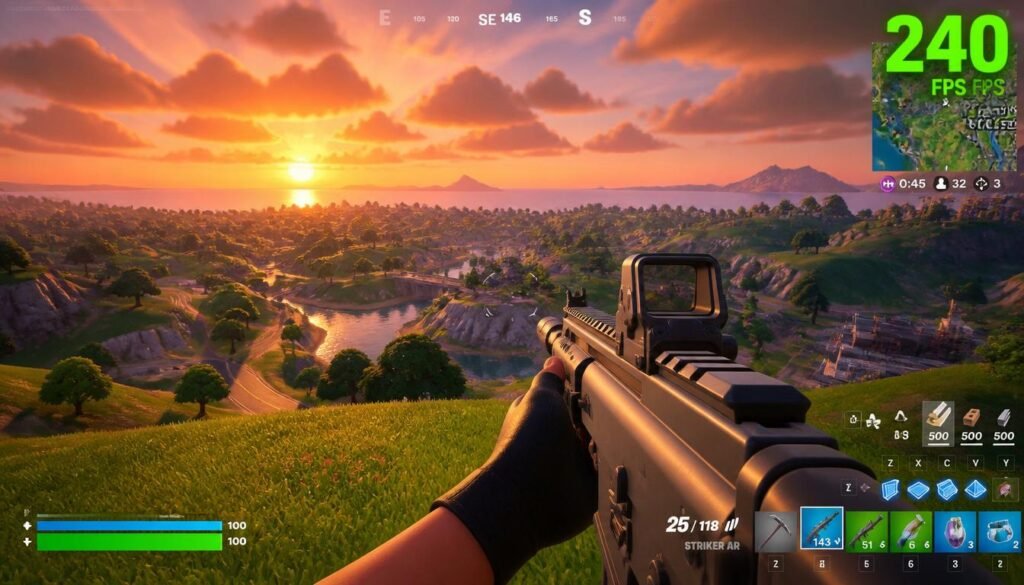
Which Is the Best Fortnite Graphics Mode for You?
Here is the simple answer:
| Your Situation | Best Fortnite Graphics Mode |
|---|---|
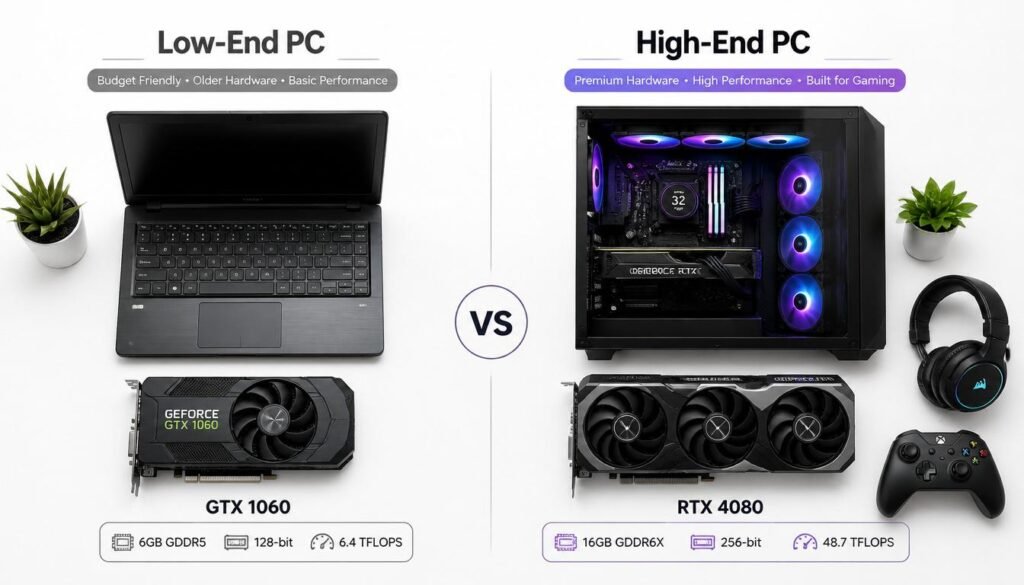
| You have a low-end or budget PC | Performance Mode |
| You have an older graphics card (GTX 10-series) | Performance Mode or DX11 |
| You have a newer graphics card (RTX or RX 6000+) | Try DX12 first |
| You care most about winning and smooth gameplay | Performance Mode |
| You care most about beautiful graphics | DX12 |
The short answer: For most players, Performance Mode is the best Fortnite graphics mode.
Why? Because smooth gameplay helps you win. Pretty graphics do not.
Pro tip: If you have an RTX graphics card, try DX12. Play 2-3 matches to let the shaders load. If it still stutters, switch to Performance Mode.
Step-by-Step: How to Change Your Fortnite Graphics Mode
Changing your Fortnite graphics mode is easy. Just follow these steps:
- Open Fortnite and go to the main menu.
- Click the menu icon (three lines) in the top left corner.
- Click the gear icon to open Settings.
- Select the Video tab (it looks like a monitor).
- Look for “Rendering Mode” under the Display section.
- Click the arrows to choose your mode:
- Performance – for maximum FPS
- DirectX 11 – for older, stable performance
- DirectX 12 – for newer systems with better graphics
- Click Apply to save your changes.
- Restart Fortnite for the change to take effect.
That is it! You have now chosen the best Fortnite graphics mode for your PC.
Best Graphics Settings for Each Mode
Once you pick your graphics mode, you should also adjust other settings. Here are the best settings for each mode.
Best Settings for Performance Mode
Best Settings for DX12
Best Settings for DX11
Use the same settings as DX12. DX11 is mainly a fallback option if the other modes cause problems.
Common Mistakes to Avoid
Here are mistakes many beginners make when choosing a Fortnite graphics mode:
Mistake 1: Using the Wrong Mode for Your PC
Many players pick DX12 because it sounds newer and better. But if you have an older PC, DX12 can actually make your game slower.
Fix: Match your mode to your hardware. Use Performance Mode for older or budget PCs.
Mistake 2: Forgetting to Restart the Game
After you change your Fortnite graphics mode, you must restart the game. If you do not restart, the new mode will not work properly.
Fix: Always restart Fortnite after changing the rendering mode.
Mistake 3: Leaving VSync On
VSync can cause input lag. That means your actions feel delayed.
Fix: Turn VSync OFF in your video settings.
Mistake 4: Setting Graphics Too High
You might want your game to look beautiful. But high settings can drop your FPS during fights.
Fix: Prioritize FPS over graphics. A smooth 144 FPS is better than a choppy 60 FPS with prettier visuals.
Mistake 5: Not Testing in Real Matches
Some players test their settings in the lobby or creative mode. But real matches have more action and stress your PC more.
Fix: Test your settings in a real Battle Royale match.
Frequently Asked Questions (FAQ)
What is the best Fortnite graphics mode for FPS?
Performance Mode gives you the highest FPS. It can deliver up to 3x the FPS of standard DirectX 11. Most professional players use Performance Mode.
What is the best Fortnite graphics mode for low-end PCs?
Performance Mode is the best choice for low-end PCs. It reduces the visual load so your computer can run the game smoothly.
Should I use DX11 or DX12 in Fortnite?
Use DX12 if you have a newer graphics card (RTX or RX 6000+). Use DX11 if you have an older card or if DX12 causes problems.
Do pro Fortnite players use Performance Mode?
Yes. Most professional Fortnite players use Performance Mode. It gives them the highest FPS and lowest input lag.
Why does my Fortnite stutter after switching to DX12?
DX12 needs to build a “shader cache” during your first few games. Play 2-3 matches and the stuttering should stop. If it does not stop, switch to Performance Mode.
Will Performance Mode make Fortnite look bad?
Performance Mode makes the game look simpler. Think of it like a mobile game. But many players prefer this because it makes enemies easier to spot.
How much FPS will I gain with Performance Mode?
Most players see a 30-80% FPS increase. Some budget PCs can even double their FPS.
Can I change my Fortnite graphics mode on console?
Console players have fewer options. The game is already optimized for your console. However, on PS5 and Xbox Series X|S, you can enable 120 FPS mode if your TV supports it.
Conclusion
Finding the best Fortnite graphics mode does not have to be hard.
Here is the bottom line:
- Performance Mode is best for most players. It gives you the highest FPS and smoothest gameplay.
- DX12 is best if you have a newer PC and care about graphics.
- DX11 is a safe fallback if other modes cause problems.
Remember these key tips:
- Always restart Fortnite after changing your mode.
- Turn VSync OFF.
- Lower shadows, effects, and post-processing.
- Test your settings in a real match.
- Prioritize FPS over pretty graphics.
The best Fortnite graphics mode is the one that gives you smooth, consistent gameplay. For most players, that is Performance Mode.
Now go ahead and change your settings. Your PC will thank you. And so will your Victory Royales.
Happy gaming! 🎮