
Introduction
Are you excited to hunt massive monsters in Monster Hunter Wilds? There’s just one problem—your game feels slow, choppy, or keeps stuttering. You’re not alone. Many players struggle with performance issues, even on good computers.
The good news? You can fix most of these problems with the right monster hunter wilds optimization settings. This guide will show you exactly which settings to change. No technical jargon. No confusing steps. Just simple, clear advice that works.
By the end of this guide, you’ll have smoother gameplay, better frame rates, and a much more enjoyable hunting experience. Let’s dive in!
Table of Contents
Does Your PC Meet the Requirements?
Before changing any settings, check if your computer can run the game. Here are the official requirements:
Minimum Requirements (30 FPS at 1080p)
- CPU: Intel i5-10400 / i3-12100 or AMD Ryzen 5 3600
- GPU: NVIDIA GTX 1660 (6GB) or AMD RX 5500 XT (8GB)
- RAM: 16 GB
- Storage: 75 GB SSD (required!)
- OS: Windows 10/11 64-bit
Recommended Requirements (60 FPS at 1080p)
- CPU: Intel i5-10400 / i3-12100 or AMD Ryzen 5 3600
- GPU: NVIDIA RTX 2060 Super (8GB) or AMD RX 6600 (8GB)
- RAM: 16 GB
- Storage: 75 GB SSD
Important: The game requires an SSD. If you’re using an old hard drive, the game will struggle to load textures and environments quickly.
Quick Settings to Change First
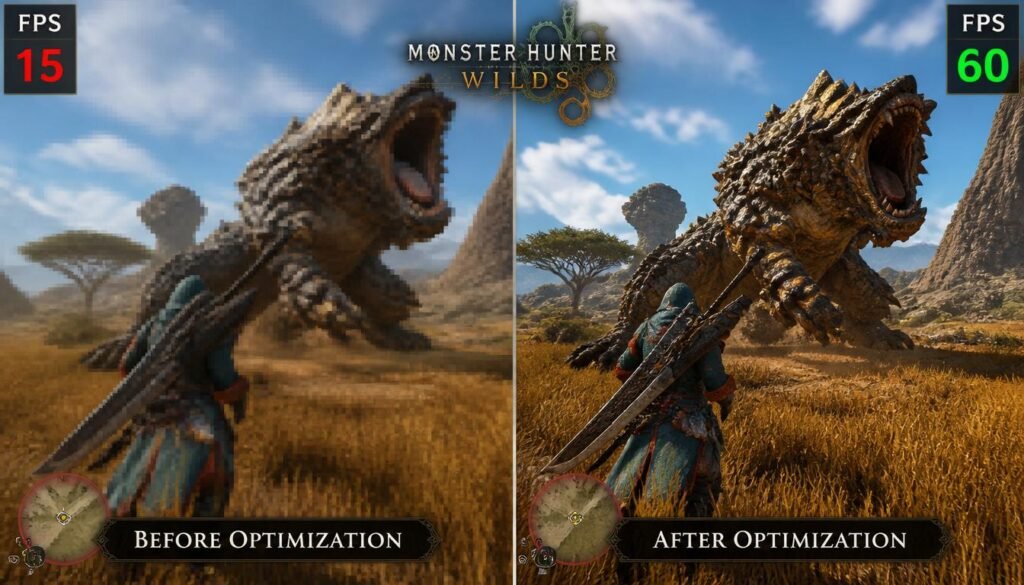
If you only have five minutes, make these monster hunter wilds optimization settings changes immediately:
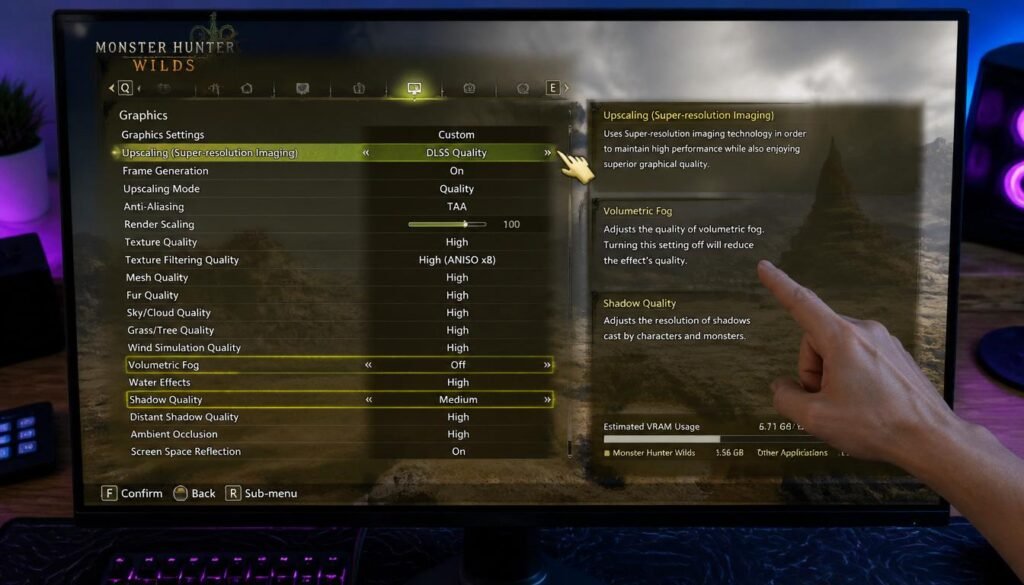
- Turn on Upscaling – Use DLSS (NVIDIA), FSR (AMD), or XeSS (Intel). This gives you a big FPS boost with little visual loss.
- Set Volumetric Fog to Low or Off – This is the single most demanding setting in the game.
- Lower Shadow Quality to Medium or Low – Shadows cost a lot of performance but don’t help you hunt better.
- Turn Off Motion Blur – Makes the game look clearer and improves responsiveness.
- Turn Off V-Sync – Reduces input lag. (Only turn it on if you see screen tearing.)
These five changes alone can add 10–30 FPS to your game!
Best Monster Hunter Wilds Optimization Settings (Step-by-Step)
Now let’s go through every important setting. Follow these recommendations based on your PC’s power.
Display Settings
Upscaling & Frame Generation
This is the most important part of optimizing Monster Hunter Wilds.
Upscaling (choose one based on your GPU):
Upscaling Mode:
- Quality – Best image quality, good FPS gain
- Balanced – Good balance of visuals and performance
- Performance – Maximum FPS, some visual loss
For most players, Quality or Balanced is the sweet spot.
Frame Generation:
- Turn this ON if you have an RTX 40-series or 50-series GPU
- For older cards, you can try FSR Frame Generation for a big FPS boost
- Only use Frame Generation if your base FPS is above 45. Below that, it adds input lag that hurts combat.
💡 Pro tip: Frame Generation is great for Monster Hunter Wilds because it’s not a competitive shooter. The smoothness is worth the small delay.
Graphics Quality Settings
Here’s where you get the biggest performance gains:
| Setting | Recommended | Performance Impact |
|---|---|---|
| Volumetric Fog | Low or Off | 🟡 Very High |
| Shadow Quality | Medium | 🟡 High |
| Ambient Occlusion | Low or Off | 🟡 High |
| Grass/Tree Density | Medium | 🟡 Medium |
| Texture Quality | Match your VRAM (see below) | 🟢 Depends |
| Mesh/Model Quality | High | 🟢 Low (keep this high!) |
| Screen Space Reflections | Off | 🟡 High |
| Motion Blur | Off | 🟢 Low |
| Depth of Field | Off | 🟢 Low |
Match Textures to Your VRAM
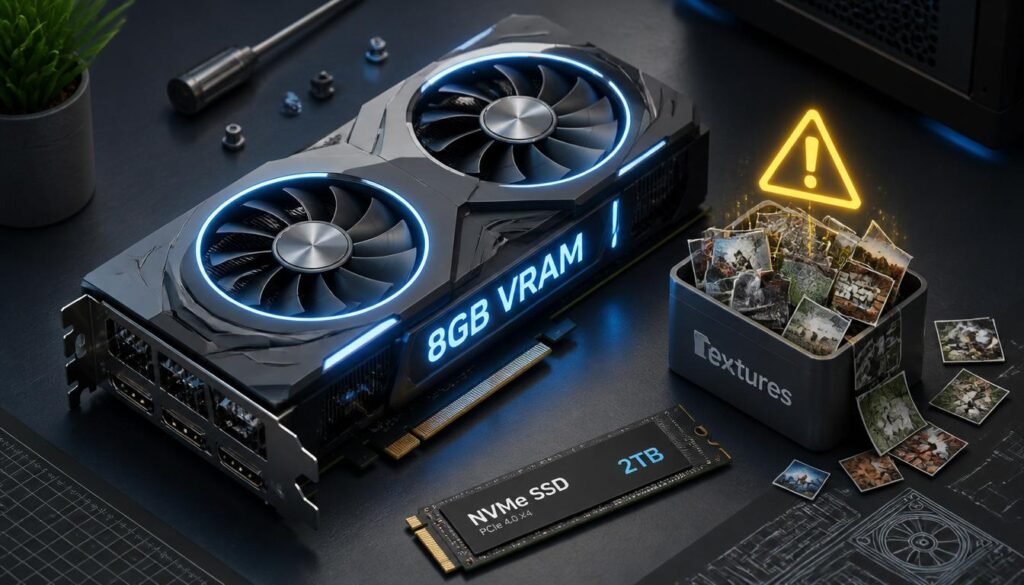
Monster Hunter Wilds uses a lot of video memory (VRAM). If you set textures too high, your game will stutter and hitch.
- 6 GB VRAM: Low textures
- 8 GB VRAM: Medium textures
- 12 GB VRAM: High textures
- 16+ GB VRAM: High or Highest textures
⚠️ Warning: Do not download the High Resolution Texture Pack unless you have 16 GB or more VRAM. It will cause frame spikes and crashes on 8 GB cards.
Advanced Tweaks for Extra Performance
If you still need more FPS, try these advanced tips.
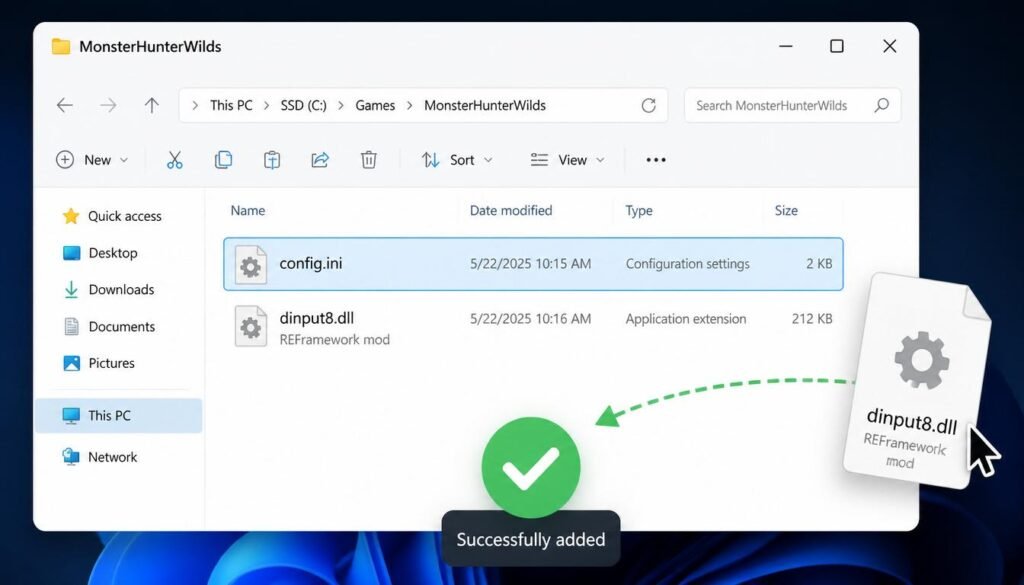
1. Install REFramework
REFramework is a mod that fixes stuttering caused by Capcom’s anti-tamper system. It can give you 5–10 extra FPS in busy areas.
How to install:
- Download REFramework from Nexus Mods
- Drop the
dinput8.dllfile into your game folder - Launch the game – it works automatically
2. Fix the Config File Typo
Some players found a typo in the game’s config file. The word “Resolution” is misspelled as “Resoltuion”.
How to fix:
- Go to your game folder:
steamapps\common\MonsterHunterWilds - Open
config.iniwith Notepad - Find “Resoltuion” and change it to “Resolution”
- Save the file and set it to “Read Only”
3. CPU Performance Tweaks
In the same config.ini file, you can add these lines to improve CPU performance:
text
ParallelBuildProcessorCount=16
RenderWorkerThreadPriorityAboveNormal=Enable
These help if you have an 8+ core CPU.
4. Use the Official Benchmark Tool
Capcom released a free benchmark tool on Steam. Use it to test your settings before jumping into a hunt.
How to use:
- Download “Monster Hunter Wilds Benchmark” from Steam
- Run it and adjust your settings in the Options menu
- Click Benchmark and watch the demo run
- Check your score and average FPS
This tool saves you time by showing exactly how your PC performs.
5. Windows-Level Optimizations
Don’t forget these simple PC tips:
- Install the game on an NVMe SSD – it streams huge environments
- Close background apps – browsers, overlays, and recording software all use resources
- Set Windows to High Performance power mode
- Update your GPU drivers – manufacturers release game-specific optimizations
- Enable XMP/EXPO in BIOS for faster memory
Common Mistakes to Avoid
Many players make these errors when tweaking their monster hunter wilds optimization settings. Don’t be one of them!
❌ Mistake 1: Running at Native Resolution
Monster Hunter Wilds is not designed to run at native resolution on most PCs. Always use DLSS, FSR, or XeSS.
❌ Mistake 2: Setting Textures Too High
If you have 8 GB of VRAM and set textures to “High,” your game will stutter constantly. Drop textures to “Medium” for smooth gameplay.
❌ Mistake 3: Enabling Frame Generation Below 45 FPS
Frame Generation adds input lag. If your base FPS is below 45, the lag makes combat feel sluggish and unresponsive.
❌ Mistake 4: Ignoring the High Resolution Texture Pack Warning
The High Resolution Texture Pack is not for everyone. Only download it if you have 16+ GB of VRAM.
❌ Mistake 5: Not Capping Your Frame Rate
Capping your FPS at 60 (or your monitor’s refresh rate) prevents big frame drops. Uncapped FPS makes stutters more noticeable.
Frequently Asked Questions
What are the best monster hunter wilds optimization settings for low-end PCs?
For low-end PCs, start with the Lowest preset. Then turn on FSR or XeSS with Performance mode. Set Volumetric Fog to Off, Shadows to Low, and Textures to Low. Cap your FPS at 30.
Does Monster Hunter Wilds have ray tracing?
Yes, but you should disable it unless you have a very powerful GPU. Ray tracing costs a lot of performance with very little visual benefit during hunts.
How do I fix stuttering in Monster Hunter Wilds?
First, lower Volumetric Fog and Shadow Quality. Then make sure your textures match your VRAM. Install REFramework to fix anti-tamper stutters. Also, update to the latest game patch – Capcom released major performance fixes in early 2026.
Should I use DLSS or FSR?
Use DLSS if you have an NVIDIA RTX card. Use FSR 3 if you have an AMD card or an older NVIDIA card. Both give excellent FPS boosts.
Can I run Monster Hunter Wilds on a GTX 1660?
Yes, but you’ll need to use the Lowest preset with FSR upscaling. Target 30 FPS at 1080p.
Why does my game look blurry?
Blurriness usually comes from upscaling. Try setting Upscaling Mode to Quality instead of Performance. You can also increase Upscaling Sharpness to 0.5 or higher.
Do I need an SSD?
Yes, absolutely. The game requires an SSD. Without one, textures won’t load properly and you’ll experience constant stuttering.
How much VRAM do I need?
The game needs at least 6 GB of VRAM for minimum settings and 8 GB for medium settings. For high textures at 1080p, 8–12 GB is recommended.
Conclusion
Getting smooth performance in Monster Hunter Wilds doesn’t have to be complicated. The right monster hunter wilds optimization settings can transform your experience from frustrating to fantastic.
Here’s a quick recap of what to do:
- Check your PC specs – make sure you have an SSD and enough VRAM
- Enable upscaling – DLSS, FSR, or XeSS is a must
- Lower Volumetric Fog and Shadows – these cost the most FPS
- Match textures to your VRAM – don’t overshoot!
- Use Frame Generation – if your base FPS is above 45
- Install REFramework – for stutter fixes
- Test with the benchmark tool – before you start hunting
Remember, every PC is different. Don’t be afraid to experiment with these settings. Start with the recommendations in this guide, then tweak them until your game feels just right.
Now go out there and hunt those monsters! With these settings, you’ll have a smoother, more enjoyable adventure in the world of Monster Hunter Wilds.
Happy hunting! 🎮🐉