
Advanced Frame Rate Test
Click "Start Test" to begin measuring your device's rendering performance. Adjust stress level to test GPU capabilities and compare your FPS with standards.
Different FPS Comparison
About Frame Rate
Frame rate, measured in frames per second (FPS), indicates how many unique consecutive images your device can display each second. Higher FPS results in smoother animations and better user experience.
Most displays refresh at 60Hz, meaning they can show up to 60 FPS. Some gaming monitors support 120Hz, 144Hz, or even 240Hz.
This test measures your device's actual rendering performance, which can be affected by hardware capabilities, browser efficiency, and system load.
What is a Frame Rate Test? (And Why You Need One)
Ever played a game that felt slow and jerky? Or watched a video that looked like it was skipping frames?
That’s a frame rate issue. A frame rate test is simply a way to measure how smooth your games and videos actually run. It counts how many individual images—called “frames”—your screen shows every second. We measure this in FPS, which stands for Frames Per Second.
Think of it like this: The higher the FPS, the smoother the experience. Low FPS means choppy gameplay. High FPS means buttery smooth action.
For gamers, this test tells you if your PC can handle the latest titles before you buy them. For video creators, it checks if your recordings play back smoothly—whether you’re aiming for standard 24fps or ultra-smooth 60fps. Knowing your frame rate is the first step to a flawless experience. No more guessing. Just facts.
Table of Contents
How to Use This Frame Rate Test Tool
Quick 3-Step Guide
1. Start Testing
- Click the “Start Test“ button
- Watch your live FPS appear instantly
- The test runs automatically in background
2. Adjust Difficulty
- Use the stress slider to add moving elements
- More elements = harder test for your device
- Watch how your FPS changes in real-time
3. Read Results
- Current FPS: Your live performance number
- Graph: Shows FPS stability over time
- Statistics: Average, max, and min FPS
- Comparison: See which performance tier you’re in
Understanding Your Results
Performance Categories
- excellent: 60+ FPS (Smooth gaming/editing)
- Good: 30-59 FPS (Everyday tasks)
- Basic: Below 30 FPS (Needs optimization)
What to Look For
- High & Stable FPS: Your device is performing well
- Dropping FPS: Device struggles under load
- Low FPS: Time for upgrades or optimizations
Pro Tips
- Close other tabs for accurate results
- Test for 30+ seconds for reliable averages
- Compare different stress levels
- Try on multiple devices
Ready to test? Click “Start Test” and discover your device’s performance in seconds!
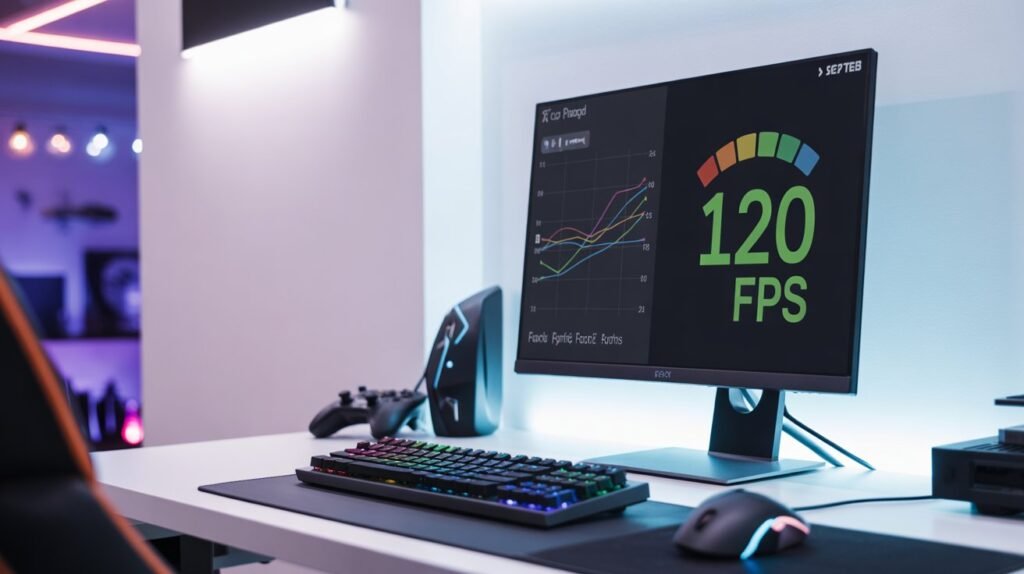
How to Read Your Frame Rate Test Results
You ran the test. You got a number. Now what?
Is 30 FPS okay? Is 120 FPS overkill? Let’s break down what your results actually mean—in plain English.
Think of FPS like a speedometer. The higher the number, the smoother the ride:
- 30 FPS: The baseline. It’s playable and fine for casual games or watching videos. Not buttery smooth, but it gets the job done.
- 60 FPS: The sweet spot. This is what most gamers aim for. Everything feels fluid, responsive, and just… right. If you’re gaming at 60 FPS, you’re in a good place.
- 120+ FPS: The pro zone. This is ultra-smooth, lightning-fast performance. But here’s the catch: you need a monitor that can keep up. If your monitor only shows 60Hz (refreshes 60 times per second), anything above 60 FPS won’t look any different. Match your FPS to your monitor’s refresh rate for the best experience.
Bottom line: Understanding your FPS tells you if your PC is performing the way it should—and if your hardware is ready for the games you want to play.
Let’s Start Simple: Think of a Flipbook
Remember those little flipbooks you made as a kid? You’d draw a picture on each page, then flip through quickly to make it move.
Each page = one “frame.”
How fast you flip = your “frame rate.”
That’s literally all frame rate is—how many pictures your screen shows you every second.
We measure this in FPS, which stands for Frames Per Second.
- Low FPS = Fewer pictures per second = choppy, stuttery movement
- High FPS = More pictures per second = smooth, lifelike movement
So What’s a Frame Rate Test?
A frame rate test is simply a check-up for your computer or gaming console. It answers one simple question:
“How many pictures per second can my device actually deliver?”
Think of it like a speedometer for your gaming rig. It tells you if your hardware is keeping up or falling behind.
Why Should You Care? (Real Talk)
Here’s why frame rate actually matters for you:
If You’re a Gamer:
You just bought a new game. You’re excited. You launch it… and it feels like moving through molasses. Everything is slow, jerky, and you keep dying because the game isn’t responding fast enough.
A frame rate test tells you before you waste your money whether your PC can handle that game. No more guessing. No more disappointment.
If You Watch Videos:
Ever tried watching a fast-action sports clip or a gameplay video and it looked all choppy? That’s low frame rate ruining your experience.
A frame rate test helps content creators make sure their videos look buttery smooth on your screen.
If You’re Building or Upgrading a PC:
Planning to spend hundreds on a new graphics card? A frame rate test (like our calculator!) shows you exactly how much faster your games will run before you swipe your credit card.
What’s a “Good” Frame Rate?
Here’s a simple cheat sheet:
| FPS Range | What It Feels Like | Good For |
|---|---|---|
| 30 FPS | Barely smooth, slightly sluggish | Older games, movies, casual gaming |
| 60 FPS | Smooth and responsive | Most console games, YouTube videos, everyday gaming |
| 120+ FPS | Ultra-smooth, lightning fast | Competitive shooters, esports, high-end PC gaming |
The higher the number, the smoother the experience.
What Affects Your Frame Rate?
Think of your PC like a team. Different parts do different jobs:
- Graphics Card (GPU): The superstar. Does most of the heavy lifting for game graphics.
- Processor (CPU): The brain. Handles all the calculations and game logic.
- RAM: The short-term memory. Keeps everything running smoothly.
- Game Settings: Turning graphics up looks pretty but makes your PC work harder.
Stop Guessing. Start Knowing.
At fpscalculatorr.com, we built a tool that does the hard work for you.
Here’s how it works:
- Pick your CPU (the brain)
- Pick your GPU (the graphics card)
- Pick a game
- Pick your settings
Boom. We’ll tell you exactly how many FPS you can expect—no confusing charts, no forum deep-dives, no headaches.
How to Test Your Frame Rate: 3 Simple Methods
Ready to see what your PC can really do? There are three main ways to check your FPS, and the right one depends on what you’re trying to figure out. Let’s walk through each method—from a quick browser check to pro-level analysis.
Method 1: Online Tools (The 10-Second Check)
Best for: Quickly checking if your monitor is running correctly.
Websites like TestUFO let you test your screen in seconds. They mainly check your monitor’s refresh rate—basically, whether your display is actually running at 60Hz, 144Hz, or whatever it’s supposed to.
The catch: This only tests your browser, not your games. It’s a good first step, but it won’t tell you how Cyberpunk 2077 will run.
Method 2: In-Game Benchmarks (The Real-World Test)
Best for: Gamers who want to know exactly how their rig performs while playing.
This is the most useful method for most people. Here’s how:
- Built-in FPS counters: Many modern games have an option in settings to show your FPS in the corner while you play.
- Steam overlay: Steam has a built-in FPS counter you can turn on.
Why this matters: You’ll see your FPS during actual gameplay—during firefights, explosions, and hectic moments. This is also perfect for testing whether changing your graphics settings actually helps.
Method 3: Professional Software (The Deep Dive)
Best for: Enthusiasts who want every detail.
Tools like MSI Afterburner (with RivaTuner) are what the pros use. They don’t just show FPS—they track:
- GPU usage (is your graphics card working hard or slacking?)
- CPU usage (is your processor the bottleneck?)
- Temperatures (is your PC overheating?)
- Frame times (are there micro-stutters you can’t see?)
This is the level of detail you need if you’re planning upgrades or troubleshooting tricky performance issues.
Why Our FPS Calculator Is Different
No software to install. No confusing graphs. Just answers.
| Feature | What It Means For You |
|---|---|
| No Installation Needed | Works right in your browser. No downloads, no accounts, no hassle. |
| Instant Results | Get your FPS estimate in seconds. Real-time updates as you adjust settings. |
| Easy to Understand | Color-coded results and plain-English explanations. No tech degree required. |
| Works Everywhere | Test on phones, tablets, laptops, or desktops. Any modern browser works. |
When Should You Use Our Tool?
🛒 Before Buying New Gear
- Test in the store before you buy
- Compare different models side-by-side
- Make sure you’re actually getting an upgrade
🔧 Troubleshooting Problems
- Find out exactly when performance drops
- Test whether your fixes actually work
- Track improvements over time
🎮 Gaming & Streaming
- Find the perfect balance between graphics and performance
- Make sure your stream stays smooth
- Get every advantage in competitive games
📱 Test Everything You Own
- Phones & tablets: See how mobile games really run
- Laptops: Test before you travel or buy
- Consoles & TVs: Check performance on the big screen
Learn as You Test
No technical knowledge? No problem.
- Live demonstrations: See what different FPS levels actually look like
- Instant feedback: We tell you what your results mean—in plain English
- Visual guides: Pictures and animations show you what’s happening
Your Privacy Is Safe
We don’t track you. Period.
- No data collection: Your test results stay on your device
- No downloads: Nothing to install means no risk of malware
- No tracking: We don’t follow you around the internet
- Transparent: Our code is open for anyone to inspect
Ready to Test Your Device?
It takes 10 seconds.
- Load the tool – Open it in any modern browser
- Click Start – Begin testing immediately
- Adjust settings – Make the test harder or easier
- Get insights – Understand exactly what your device can do
Share your results with friends, compare devices, or show a tech expert exactly what you’re experiencing.
Perfect For:
✅ Gamers
✅ Streamers
✅ Students
✅ Professionals
✅ Anyone who wants their tech to just work
[Start Your Free Test Now] – No technical skills required. Just click and see immediate results that anyone can understand.
Frame Rate Test FAQ: Your Questions, Answered
Got questions about FPS? We’ve got answers. Whether you’re new to PC gaming or just trying to figure out why your game feels choppy, this guide covers everything you need to know.
Core Concept Questions
1. What is a “good” frame rate?
It depends on what you’re doing:
- 24 FPS: Perfect for movies. That’s the standard cinema look.
- 30 FPS: Fine for casual gaming and basic videos. Playable, but not super smooth.
- 60 FPS: The sweet spot for most gamers. Smooth, responsive, and feels great.
- 144+ FPS: What competitive players want. Ultra-smooth with less lag.
- 90 FPS: The minimum for virtual reality to avoid motion sickness.
Bottom line: Higher FPS = smoother experience.
2. What does 30, 60, and 144 FPS actually feel like?
Think of it like this:
- 30 FPS: Like walking. You’re moving, but it’s a bit slow and clunky.
- 60 FPS: Like riding a bike. Smooth and responsive.
- 144 FPS: Like driving a sports car. Everything happens instantly.
In games, higher FPS means you see motion more clearly and your controls respond faster. In competitive shooters, that split-second difference can mean winning or losing.
3. What’s the difference between FPS and Hz?
This confuses a lot of people. Here’s the simple breakdown:
- FPS (Frames Per Second): What your computer produces.
- Hz (Hertz): What your monitor can show.
Think of it like a faucet and a cup:
- Your PC is the faucet, producing water (FPS).
- Your monitor is the cup, catching water (Hz).
If your faucet pours 144 cups per second but your cup only holds 60, you’re losing 84 cups. Your monitor can only show as many frames as its refresh rate allows.
A 300 FPS game on a 60Hz monitor? You’re only seeing 60 FPS. To see 144 FPS, you need a 144Hz monitor.
Testing & Measurement Questions
4. What’s the best way to test my FPS in games?
For most people, the easiest methods are:
- In-game FPS counters: Check your game’s settings. Many have a built-in option.
- Steam overlay: Steam has a free FPS counter you can turn on.
- Our calculator: For estimating performance before you buy a game.
For detailed analysis, pros use MSI Afterburner. It shows FPS, temperatures, and more all at once.
5. Can testing my FPS damage my PC?
No, absolutely not.
Running an FPS test is like checking your car’s speedometer—it’s just measuring what’s happening. Your PC is designed to handle this.
Note: Some extreme “stress test” tools push hardware to its limits, but normal FPS testing is completely safe.
6. Why is my FPS high but my game still feels choppy?
This is called poor frame pacing.
Imagine a drummer trying to play 60 beats per minute. If they play two beats fast then pause, it sounds wrong even though the average is 60. Same with FPS—if frames aren’t delivered smoothly, you feel stutter even with “good” FPS.
What to check: Look at your “1% low” FPS (explained next). That’s usually the real culprit.
7. What is “1% low” FPS and why should I care?
1% low is a fancy term for “your FPS during the worst moments.”
Example:
- Your average FPS is 100 (sounds great!)
- But your 1% low is 20 (uh oh)
That means during intense moments—explosions, big fights—your game drops to 20 FPS and feels terrible. A good 1% low should be close to your average FPS. That means consistent, smooth performance.
Gaming & Troubleshooting Questions
8. Why does my FPS suddenly drop in games?
Common reasons:
- Overheating: Your PC gets too hot and slows down to protect itself.
- Background apps: Windows decided to update right when you’re in a firefight.
- New areas: The game is loading a big, detailed zone.
- Shader compilation: Some games stutter while learning how to display graphics for the first time.
Quick fix: Check your temperatures, close background apps, and update your graphics drivers.
9. How can I boost my FPS for free?
Try these before spending money:
- Update your drivers: Free and often gives a nice boost.
- Lower graphics settings: Shadows and reflections are usually the biggest hitters.
- Close background apps: Browser tabs, Discord, Spotify—they all use resources.
- Check your power settings: Make sure Windows is set to “High Performance.”
- Lower resolution: Playing at 1080p instead of 1440p can double your FPS.
10. What is a “CPU bottleneck”?
Your PC is a team:
- CPU (the brain): Figures out what needs to be drawn.
- GPU (the artist): Actually draws it.
A CPU bottleneck happens when your brain can’t think fast enough, so your artist sits around waiting for work. Your powerful graphics card is wasted because the CPU can’t feed it fast enough.
How to spot it: If your GPU usage is below 95% but your CPU is maxed out, you’ve got a bottleneck.
11. Should I cap my FPS?
Yes, often it’s a good idea.
- Capping at your monitor’s refresh rate (like 60 FPS on a 60Hz screen) prevents screen tearing.
- Capping slightly below (like 117 FPS on a 120Hz screen) keeps G-Sync/FreeSync working perfectly.
- Capping can also lower temperatures if your PC is running hot.
12. What are G-Sync and FreeSync?
Fancy names for “screen smoothing technology.”
The problem: Your GPU sends frames at uneven times. Your monitor refreshes at fixed times. This mismatch causes screen tearing (that ugly split look).
The solution: G-Sync (Nvidia) and FreeSync (AMD) let your monitor wait for your GPU, matching their timing perfectly. Result: no tearing, no stutter, just smooth gaming.
Video & Creation Questions
13. What frame rate should I use for YouTube?
- 24 FPS: Cinematic, movie-like look.
- 30 FPS: Standard for vlogs, talking heads, most content.
- 60 FPS: Best for gaming, sports, action footage.
Quick tip: If you’re recording gameplay, use 60 FPS. It looks way better.
14. Why is my 60 FPS video still choppy?
Dropped frames. Your recording software couldn’t keep up, so it just… skipped some frames.
Think of it like a flip book where someone ripped out pages. The story still moves forward, but it jumps.
Fix: Lower your recording settings, close background apps, or get a faster storage drive.
Hardware & Mobile Questions
15. Can my monitor limit my FPS?
Yes, but only what you see.
- If you have a 60Hz monitor, you physically cannot see more than 60 FPS.
- But your PC might still be producing 100 FPS, which can reduce input lag (making controls feel more responsive).
Best setup: Match your FPS to your monitor’s refresh rate for the smoothest experience.
16. How do I check FPS on my phone?
- Android: Turn on “Developer Options” and enable “Show FPS” or use apps like Game Bench.
- iPhone: It’s trickier. Some games have built-in FPS counters, but iOS doesn’t have a system-wide option.
17. I have a 120Hz phone. Why isn’t everything smooth?
Battery life. Running at 120Hz all the time drains your battery fast.
Most phones:
- Use 120Hz in games and menus that support it
- Drop to 60Hz for apps, videos, and normal use
Your phone is just trying to save power. Totally normal.
Still have questions? Contact us and we’ll help you out!