
You finally turn on ray tracing, expecting jaw‑dropping reflections and lifelike lighting How to Optimize Your Gaming PC for Ray Tracing (No Stress, Just FPS). Instead, your frame rate crashes and the game turns into a slideshow. Sound familiar?
You’re not alone. Ray tracing (RT) is demanding, but with the right tweaks, you can enjoy stunning visuals without sacrificing smooth gameplay. This guide cuts through the hype and gives you simple, proven steps to optimize your PC for ray tracing – whether you’re on a budget or rocking a high‑end rig.
Table of Contents
What Nobody Tells You About Ray Tracing
Before we dive into settings, let’s be honest: not all PCs handle ray tracing equally, even if you have a decent GPU. Here’s a quick reality check on what you really need:
| Level | GPU Examples | Resolution & RT Setting |
|---|---|---|
| Entry‑Level RT | RTX 3060 Ti, RX 6700 XT | 1080p, Medium RT |
| Sweet Spot | RTX 4070, RX 7800 XT | 1440p, High RT |
| Path Tracing Ready | RTX 4080 or higher | DLSS 3.5 required |
The VRAM trap
Games like Cyberpunk 2077 with RT Ultra can eat over 12GB of VRAM. If your GPU has only 8GB, you’ll experience stuttering or blurry textures. Pro tip: before disabling RT effects, try lowering Texture Quality first – it frees up VRAM with minimal visual loss.
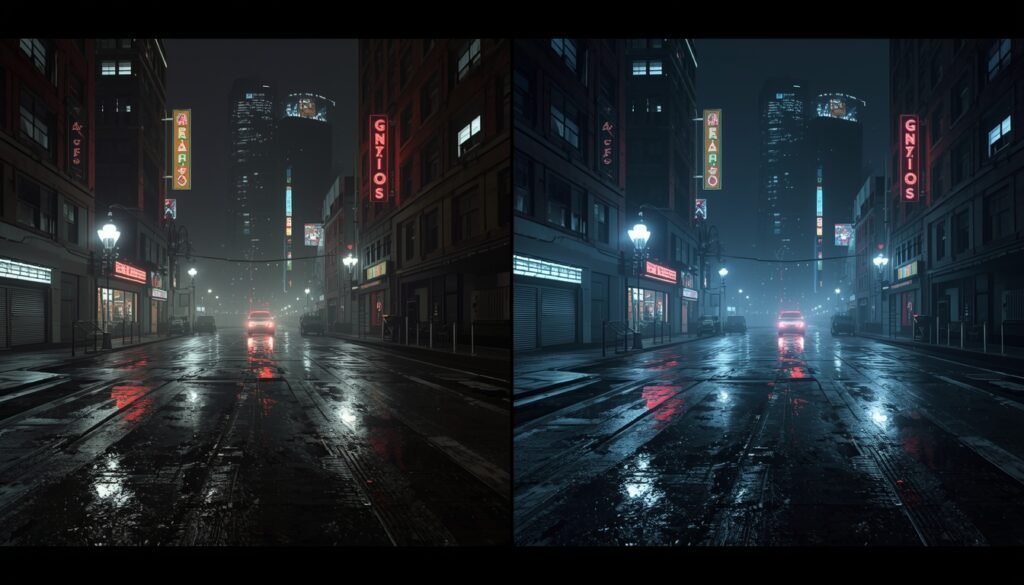
5‑Minute BIOS Tweaks That Unlock Hidden RT Performance
Most guides just tell you to update drivers. We’ll go a step further. These BIOS and system tweaks take five minutes and can boost RT performance by 5–10%.
Enable Resizable BAR (NVIDIA) or SAM (AMD)
This lets your CPU access the full GPU memory, which is especially helpful for ray tracing.
- How: Enter BIOS (press Del/F2 during startup), look for “Resizable BAR” or “Smart Access Memory,” and enable it.
Force PCIe 4.0
If your motherboard and GPU support PCIe 4.0 (RTX 30‑series or newer / Ryzen 3000 or newer), set it manually in BIOS. It ensures maximum bandwidth.
Validate XMP / DOCP
Your RAM is probably running slower than its advertised speed. Enable XMP (Intel) or DOCP (AMD) in BIOS to get the full speed – ray tracing loves fast memory.
Pro tip: Disabling unused SATA ports can slightly reduce system latency. It’s a small extra step for enthusiasts.
Getting Your System Ready for Ray Tracing
Before you start tweaking in‑game settings, make sure your system is prepared:
- Operating system: Windows 10 or 11 (with all updates).
- Graphics drivers: Always the latest from NVIDIA or AMD.
- Hardware‑accelerated GPU scheduling (HAGS): Turn it on in Windows Settings > Display > Graphics. It helps with frame pacing in RT games.
These basics ensure your PC can actually deliver the performance you’re about to tune.
Stop Your GPU from Melting: Cooling Secrets for RT
Ray tracing pushes your GPU harder than almost any other workload. If your fans sound like a jet engine, try these fixes:
Undervolt Your GPU
You can drop temperatures by 10–15°C without losing performance. Use MSI Afterburner – plenty of easy tutorials online.
Replace Thermal Paste
If your GPU is a few years old, fresh thermal paste can work wonders. PTM7950 is a popular long‑lasting option.
Improve Case Airflow
Make sure fans are positioned to blow cool air directly at the GPU. Even one extra fan can help.
Pro tip: Clean dust filters every month. A 30‑second clean can prevent thermal throttling during intense RT scenes.
Which Graphics Card Actually Delivers Smooth RT?
If you’re buying a GPU specifically for ray tracing, here’s what to look for:
- NVIDIA RTX series – Still the ray tracing leader.
- High‑end: RTX 3070 / 3080 / 3090
- Budget: RTX 3060 / 3050 (can handle RT at lower settings)
- AMD Radeon RX 6000 / 7000 series – Good raster performance, but ray tracing trails NVIDIA at the same price. However, they often have more VRAM, which helps with textures.
- VRAM is key – For smooth RT at 1080p, aim for 8GB minimum. For 1440p RT, 12GB or more is ideal.
Game‑by‑Game Settings: No More Trial & Error
Every game reacts differently to RT settings. Instead of blindly changing everything, use this table as a starting point.
*Targeting 60 FPS on mid‑range hardware (RTX 3060 Ti / RX 6700 XT)*
| Game | RT Reflections | RT Shadows | RT GI | Upscaling | FPS | Key Setting Tip |
|---|---|---|---|---|---|---|
| Cyberpunk 2077 | Medium | Off | Medium | DLSS Performance | 60 | Disable RT Sun Shadows |
| Alan Wake 2 | High | Low | High | FSR3 Quality | 45 | Set RT Indirect Light to Medium |
| Fortnite | Epic | Medium | Off | TSR High | 120 | Lower Post‑Processing to Medium |
| Hogwarts Legacy | Medium | Low | Off | FSR2 Balanced | 60 | Disable RT Fog & Clouds |
| Spider‑Man: Miles Morales | High | Off | Medium | DLSS Quality | 60 | Reduce Traffic Density |
| Control | High | Medium | High | DLSS Performance | 60 | Disable RT Debris |
| Dying Light 2 | Medium | Off | Medium | FSR2 Quality | 60 | Set Contact Shadows to Static Only |
| Metro Exodus EE | Ultra | Low | Ultra | DLAA | 60 | Disable Advanced PhysX |
| Resident Evil 4 Remake | High | Off | Off | FSR2 Quality | 90 | Lower SSR to Medium |
| The Witcher 3 (Next‑Gen) | Medium | Low | Off | FSR2 Balanced | 60 | Set Grass Density to Medium |
| Callisto Protocol | Medium | Off | Medium | XeSS Performance | 60 | Disable Motion Blur |
| Battlefield 2042 | Medium | Off | Off | DLSS Performance | 90 | Reduce Particle Quality |
| Watch Dogs: Legion | Medium | Off | Medium | DLSS Balanced | 60 | Set Crowd Density to Low |
| Portal RTX | Low | Low | Medium | DLSS Performance | 45 | Disable High‑Res Textures |
Little‑Known Tricks That Boost FPS Instantly
These are the tricks you won’t find in most guides.
VRAM Saver Mode
If you have an 8GB card, set Texture Quality one tier below your RT preset.
Example: RT Medium → Textures Low.
This can boost FPS by 15–25% in games like Hogwarts Legacy or Resident Evil 4.
Upscaling Sharpness Sweet Spots
- DLSS: 60–70% sharpness
- FSR 2: 30–40% sharpness
- XeSS: 50% sharpness
Adjust in the game or via tools like NVIDIA Freestyle.
Ray Reconstruction
Only enable it in Cyberpunk 2077 (with DLSS 3.5). In older games, it can cause ghosting.
Why Your CPU Still Matters (And How to Tune It)
While the GPU does the heavy lifting for RT, a weak CPU can still hold you back. For smooth RT gaming:
- Aim for a modern 6‑core or better CPU (Intel i5/i7 or AMD Ryzen 5/7).
- Overclocking can help, but modern CPUs often boost themselves well.
- Make sure your CPU isn’t overheating – clean coolers and fresh thermal paste matter for CPUs too.
A balanced system ensures your GPU isn’t waiting on the processor.
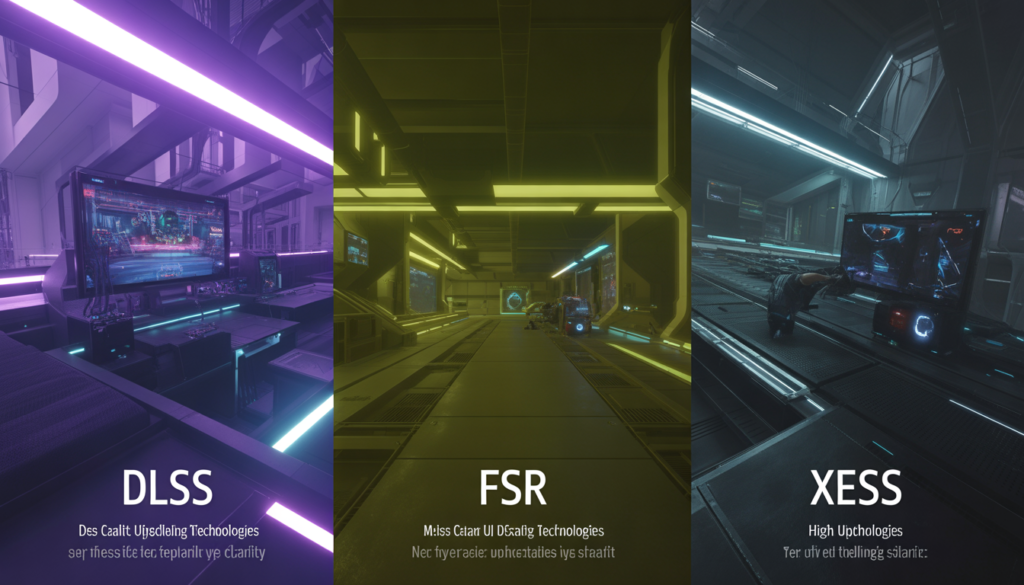
DLSS vs. FSR vs. XeSS: Which One to Pick
Don’t get lost in the acronyms. Here’s the simple version:
- DLSS (NVIDIA) – Best quality, exclusive to RTX GPUs. Use Quality mode for 1440p, switch to Performance if you need more FPS.
- FSR (AMD) – Works on almost any GPU. FSR 2 Quality is a good starting point; Balanced for 4K.
- XeSS (Intel) – Works on all GPUs, quality is between DLSS and FSR.
Frame Generation (DLSS 3 / FSR 3) can boost FPS dramatically, but only use it on RTX 40‑series for DLSS 3 – older cards may experience input lag.
Pro tip: Setting render resolution to around 70–77% gives you ultra‑sharp RT visuals without melting your GPU.
Preparing Your PC for Path Tracing (The Next Big Thing)
Path tracing (like Cyberpunk’s “RT Overdrive”) is the next level of ray tracing. To be ready:
- GPU: Only RTX 40‑series handles it smoothly today. RTX 30‑series will struggle.
- PSU: Path tracing causes sudden power spikes. An 850W+ PSU with good transient protection is recommended.
- Windows: Keep Hardware‑Accelerated GPU Scheduling enabled – it improves frame pacing.
If you’re buying new, prioritize 16GB+ VRAM and AV1 encoding for future games and streaming.
Fixing Crashes & Flickering When Nothing Else Works
If you’re still experiencing crashes, flickering, or stutters:
Reset Shader Cache
Delete the NVIDIA or AMD cache folders – this fixes 90% of flickering issues.
Memory Leak Killer
Use Process Lasso to cap the game’s CPU priority. It prevents stutter from building up over time.
Engine.ini Tweaks (Unreal Engine games)
Add these lines to Engine.ini:
text
r.RayTracing.Enable=1
r.GTSyncType=1
This locks smooth frame pacing in Unreal games.
Pro tip: Disable hardware monitoring apps like MSI Afterburner while gaming – they can conflict with RT features.
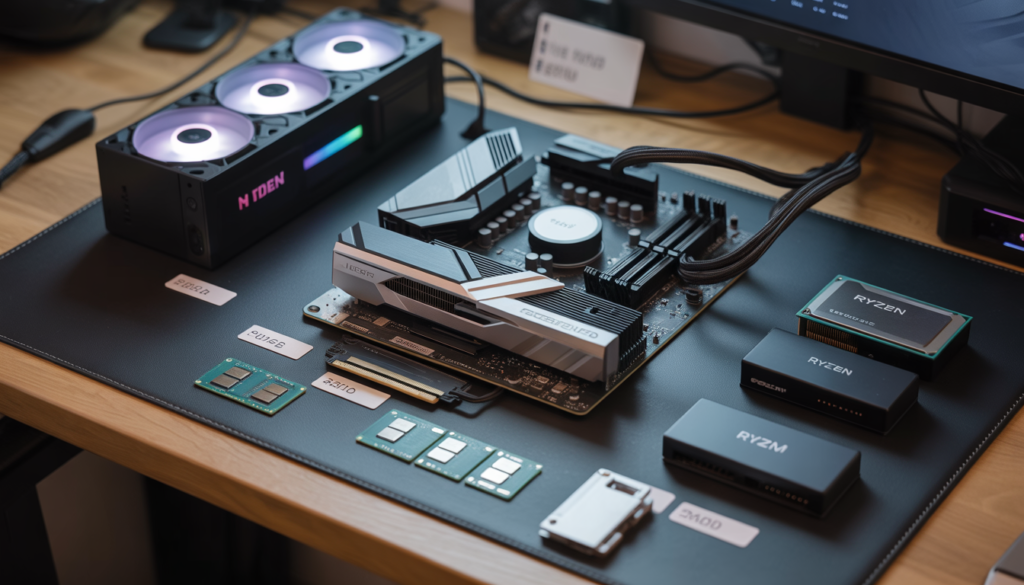
Building a Ray Tracing PC for Under $600
You don’t need to spend a fortune to enjoy ray tracing. Here’s how:
Used GPU Gems
- RTX 2080 Ti ($220–250) – RT performance similar to RTX 3060, but cheaper.
- RX 6800 ($280) – 16GB VRAM makes it future‑proof for textures.
Sample Build ($595)
| Part | Price (Used/New) |
|---|---|
| GPU: RTX 2080 Ti | $230 |
| CPU: Ryzen 5 5600 | $120 |
| RAM: 16GB DDR4 3200MHz | $35 |
| PSU: 650W 80+ Gold | $70 |
| Case + MB + SSD | $150 |
| Total | $595 |
This build plays AAA ray‑traced titles at 1080p / 60 FPS with optimized settings.
The Ultimate Settings Cheat Sheet for 6‑8GB Graphics Cards
If your GPU has 6GB or 8GB VRAM, use this cheat sheet to prioritize settings.
| Setting | Change | FPS Gain | VRAM Saved | Visual Impact |
|---|---|---|---|---|
| Texture Quality | Ultra → Medium | +12–18% | 1.2–1.8GB | Moderate |
| RT Shadows | Disable | +25–35% | 1.0–1.5GB | Noticeable |
| RT Reflections | High → Low | +20–25% | 0.8–1.2GB | Moderate |
| Ambient Occlusion | RT/SSAO → Off | +15–20% | 0.5–0.8GB | Flatter lighting |
| Volumetric Fog | High → Low | +10–15% | 0.3–0.5GB | Slightly less atmosphere |
| DLSS/FSR | Quality → Balanced | +30–50% | Minimal | Slight softness |
| View Distance | Ultra → Medium | +8–12% | 0.4–0.7GB | Minor pop‑in |
Quick Rules
- Texture Quality is the biggest VRAM hog – lower it first.
- RT Shadows are the most demanding effect – disable for big gains.
- Always keep VRAM usage below 90% to avoid stuttering.
Your Ray Tracing Questions, Answered
Q1: Can I run ray tracing on a GPU with less than 8GB VRAM?
Yes, but you’ll need to compromise. On a 6GB card like the RTX 2060:
- Disable RT shadows.
- Use DLSS/FSR Balanced.
- Lower textures to Medium.
Example: Control runs at 45–55 FPS with RT reflections only.
Q2: AMD vs NVIDIA for budget ray tracing – which is better?
NVIDIA usually gives better RT performance at the entry level.
- Used RTX 2080 Ti: ~68 FPS in Cyberpunk RT Medium + DLSS.
- RX 6800: ~52 FPS with same settings (but offers more VRAM for non‑RT games).
Q3: Which ray tracing effects hurt performance the most?
From most to least demanding:
- RT Global Illumination (e.g., Metro Exodus)
- RT Shadows
- RT Reflections
- RT Ambient Occlusion
Disable the first two for the biggest FPS boost.
Q4: Does RAM speed affect ray tracing performance?
Only slightly (5–8% at most). Focus instead on:
- GPU VRAM (8GB+ ideal)
- GPU core performance
- Having at least 16GB system RAM
Q5: Should I enable Hardware‑Accelerated GPU Scheduling?
Yes. It gives a 5–10% FPS boost in many RT titles like Watch Dogs: Legion and Portal RTX.
Enable it in Windows Settings > Display > Graphics.
Q6: How much does DLSS / FSR boost RT performance?
Typically 30–60% more FPS depending on the mode:
- DLSS Quality: +30–40%, near‑native image quality.
- FSR Balanced: +40–50%, slightly softer.
- DLSS Performance: +55–65%, more noticeable artifacts.
Final Takeaway: Smart Trade‑offs, Stunning Results
Optimizing for ray tracing isn’t about maxing every setting – it’s about strategic compromise. You can enjoy stunning ray tracing without breaking the bank or your frame rate.
Quick Recap
- GPU first: Aim for a used RTX 2080 Ti or RX 6800 if budget‑conscious.
- VRAM is king: 8GB+ lets you combine Medium RT with decent textures.
- Upscale aggressively: DLSS/FSR Balanced is your friend for hitting 60 FPS.
- Triage RT effects: Reflections > Shadows. Disable RT GI if you need headroom.
- Software tweaks: Enable HAGS, clean your PC, and monitor VRAM with MSI Afterburner.
Ray tracing on a budget demands smart sacrifices – but the result is a smooth, visually impressive experience that rivals much more expensive builds.
Ready to build or upgrade? Join hardware Discord communities to see real‑time benchmarks and get advice from fellow builders. And if this guide helped you, share it with someone who’s struggling with ray tracing – they’ll thank you later.
Happy gaming – and may your frames be high and your temperatures low.